
Google Calendar Integration
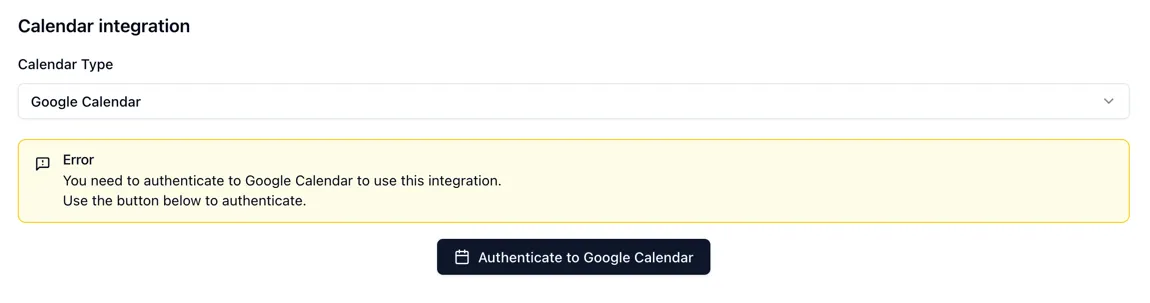
Klokku supports storing events in Google Calendar instead of the internal database. You can switch to Google Calendar integration in the Calendar integration section of the Profile page.
When Google Calendar is chosen as a calendar type, the events are stored in the Google Calendar only. They are not stored in the internal database.
To access authenticate hosted instance of Klokku to Google Calendar, you need to configure Google Calendar API Client first.
1. Google Cloud Console Configuration
Section titled “1. Google Cloud Console Configuration”This step is required to retrieve KLOKKU_GOOGLE_CLIENT_ID and KLOKKU_GOOGLE_CLIENT_SECRET values, which are used to authenticate Klokku to Google Calendar.
-
Log in to the Google Cloud Console.
-
Click Select a project.
-
In the pop-up window, click New project.
-
Insert your Project Name and Location.
-
Click the hamburger menu on the left-hand side and select APIs & Services.
-
From the navigation menu, select Library.
-
In the search field, type in Google Calendar API.
-
Select the Google Calendar API tile.
-
Click Enable.
-
From the navigation menu, select Credentials.
-
Click + Create credentials button from the top ribbon and select OAuth client ID.
Note: To create an OAuth client ID, you must have your consent screen configured. To create the Google Auth Platform:
- Click Configure consent screen.
- Insert the following information:
- App name (you can insert any name).
- User support email. - Click Next.
- Select External and click Next.
- Insert contact information.
- Select the I agree to the Google API Services: User Data Policy checkbox and click Continue.
- Click Create.
-
From the drop-down menu, select the Web application type.
-
Copy the
http://<KLOKKU_HOST>:<KLOKKU_PORT>/api/integrations/google/auth/callbackaddress to the Authorized redirect URIs field and define the following variables:KLOKKU_HOST: the host of your Klokku instanceKLOKKU_PORT: the port of your Klokku instance
-
Click Create.
The pop-up window with the OAuth client credentials is displayed. Record your Client ID and Client secret values, or click the Download JSON button, to save the credentials in a JSON file. Use these credentials during the Klokku installation.
2. Google Calendar API Client in Klokku
Section titled “2. Google Calendar API Client in Klokku”To use Google Calendar integration in Klokku, you need to configure the following environment variables:
KLOKKU_GOOGLE_CLIENT_ID: your Google Cloud Client IDKLOKKU_GOOGLE_CLIENT_SECRET: your Google Cloud client secret.
If you run Klokku in a Docker container, you can pass these variables using the -e flag like this:
docker run -d --name klokku \ -p 8181:8181 \ -v storage:/app/storage \ -e KLOKKU_HOST="http://localhost:8181" \ -e KLOKKU_GOOGLE_CLIENT_ID="<GOOGLE_CLIENT_ID>" \ -e KLOKKU_GOOGLE_CLIENT_SECRET="<GOOGLE_CLIENT_SECRET>" \ ghcr.io/klokku/klokku:latest3. Change events storage to Google Calendar
Section titled “3. Change events storage to Google Calendar”- Go to the Profile page.
- Scroll down to the Calendar integration section.
- Change Calendar Type to Google Calendar.
- Click Authenticate to Google Calendar
- Accept the permission request.
- Choose the Google Calendar to store events from the drop-down menu.